
How to Improve Gaming Performance on Your Android Phone
Lag, heating and frame drops in BGMI or Free Fire? These settings and habits help any Android phone run games smoother, without risky hacks.
Nothing ruins a match like sudden lag or a phone that turns into a hand warmer. You can’t turn a budget phone into a gaming flagship, but you can usually get noticeably smoother gameplay with the right settings and a few habits. Here’s what actually works.
1. Turn on your phone’s game mode
Most Android brands include a built-in game mode or game space. It can block notifications during matches, free up memory, and prioritise performance for the game. Look for it in Settings, often under “Special features”, “Advanced features” or “Game”.
2. Choose the right in-game graphics settings
This makes the biggest difference. In the game’s own settings:
- Prefer a stable frame rate over high graphics. Smooth 60fps with “Smooth” or “Balanced” graphics plays better than choppy “Ultra” graphics.
- Turn off shadows and anti-aliasing if you’re getting drops.
- Use the highest frame rate your phone can hold steadily for 10+ minutes, not just the first minute.
3. Keep the phone cool
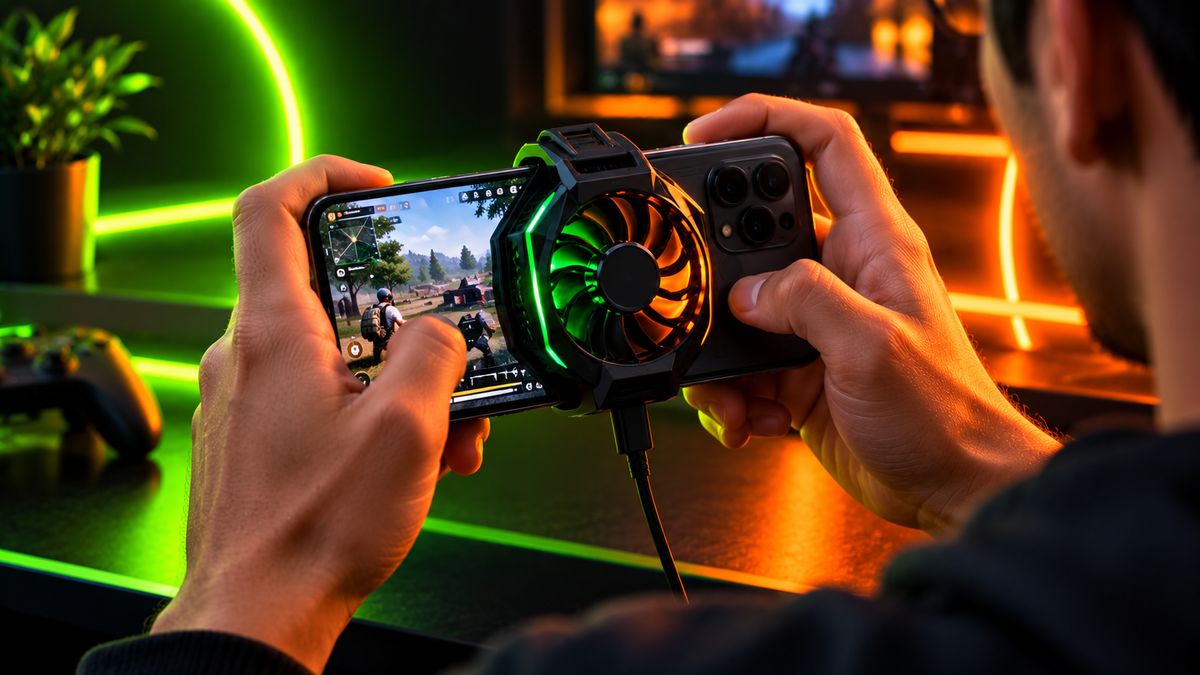
Phones slow themselves down when they get hot, which is called thermal throttling. To avoid it:
- Don’t game while charging. Charging adds a lot of heat.
- Remove thick cases during long sessions.
- Play in a cool place, out of direct sunlight.
- Take short breaks between long matches.
4. Free up memory and storage
- Close background apps before starting a match. This is one of the few times closing apps really helps.
- Keep at least 15–20% storage free. Phones slow down when storage is nearly full.
- Uninstall apps you don’t use. Many run in the background.
5. Fix your network, not just your phone
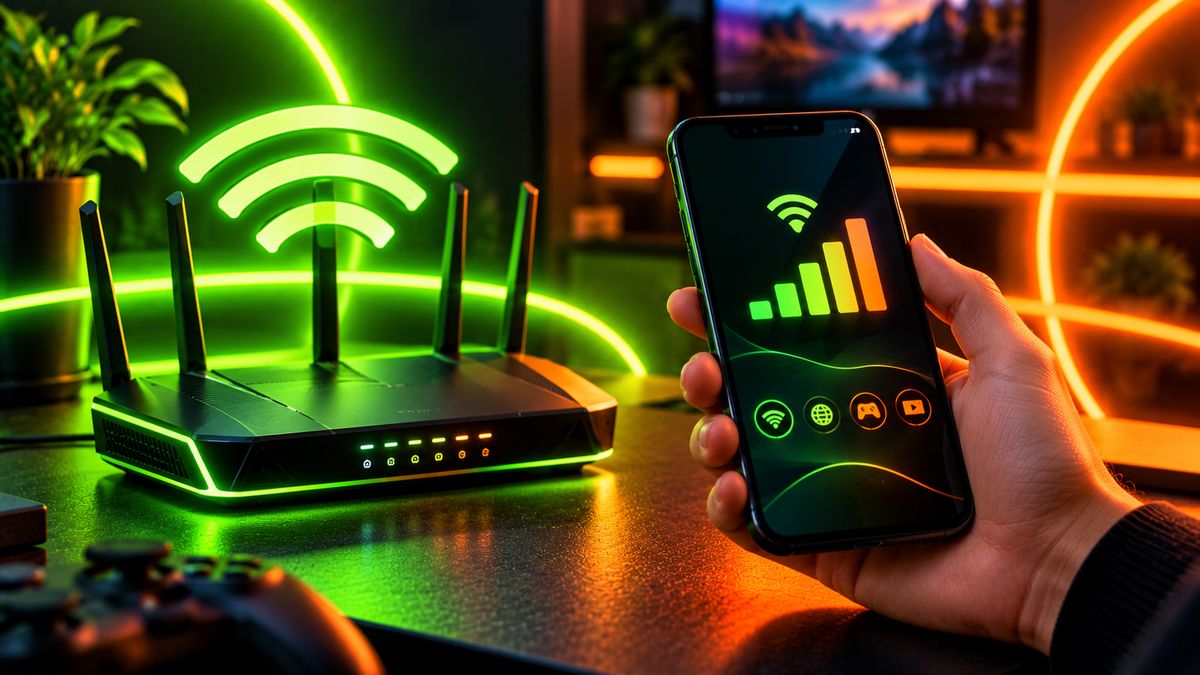
A lot of “lag” is actually ping, meaning network delay, not phone performance:
- Use Wi-Fi on the 5GHz band if your router supports it, and sit close to it.
- On mobile data, check that you’re on 4G or 5G, not a weak signal.
- Pause big downloads and streaming on the same network.
6. Keep the game and phone updated
Game updates often include performance fixes for specific phones, and system updates can improve both performance and battery. Install them, but avoid big updates right before an important match.
Tip: Avoid “game booster” or “RAM cleaner” apps from unknown developers. Most do nothing useful, some show heavy ads, and some are outright malware. Your phone’s built-in game mode is enough.
What NOT to do
- Don’t use GFX tools or modded game files to unlock settings. They can get your account banned in games like BGMI and Free Fire.
- Don’t root your phone just for gaming. It can break security and banking apps, and void your warranty.
- Don’t keep the phone at 100% brightness for hours. It adds heat and drains the battery fast.
The bottom line
Use your phone’s game mode, pick a stable frame rate over fancy graphics, keep the phone cool, and fix your network. Those four steps solve most lag and heating problems. If your phone still struggles after all this, it may simply be time to upgrade to a phone with a stronger processor and better cooling.